Why Mounting a Damaged File System Can Be Risky
Mounting activates an operating system's normal, live interpretation of a volume — and that interpretation can write to the source through journal replay or background repair, while simply browsing it can force extra reads on a drive that is already struggling. These are two separate risks, not one, and each calls for a different safeguard.
- Mounting is the OS interpreting a volume live, not a neutral look at it.
- Journal replay and background repair can write to the source, sometimes even with a read-only mount.
- "Read-only" exists at several layers, and they protect against different things.
- Browsing and previews add read load to a drive that is already struggling.
- Safer route: assess the source, image it if needed, inspect the image without a writable mount.
Scroll horizontally to see the full diagram →
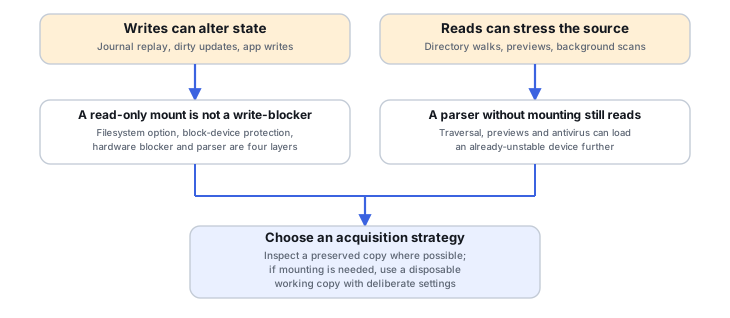
Mounting is an interpretation, not a neutral look
Asking an operating system to mount a volume asks it to interpret that volume as a live, usable file system, with all the bookkeeping that implies. A mount failing does not mean the files on it are unrecoverable — recovery software can often parse damaged structures directly without ever making the volume live. A mount succeeding does not mean the opposite either: it confirms the file system could be interpreted, not that every file on it is intact.
The write risk: journal replay and dirty-state updates
A writable mount, a journal replay, a dirty-state update, or indexing and application writes initiated after the mount can all change what is on the source — but exactly which of these actually happens depends on the file system, the driver, the operating system, and how it is configured. Not every mount does all of these things, and it is a mistake to assume a specific mount either will or will not write, without checking the specifics for that file system and platform.
Read-only exists at several layers
"Read-only" is not one setting. A file-system-level read-only mount option, a block-device-level write protection, a hardware write blocker, and a recovery tool's own read-only parser are four different mechanisms, enforced at four different points in the stack. A read-only mount option is not the same as hardware write blocking — it relies on the file-system driver behaving as expected, while a write blocker intercepts at the hardware or protocol level regardless of what any driver does. Neither one is a cure for an unstable source: a write blocker does not stop a solid-state drive's own internal background activity, such as garbage collection, which does not depend on host writes at all (see SSD Recovery Fundamentals).
A verified example: ext4's ro and noload
Illustrative example: read-only does not mean the journal stays untouched
An ext4 file system is mounted with the ro option after an unclean shutdown.
According to the Linux kernel's own ext4 documentation, ext4 will replay its journal — and thus write to the partition — even when mounted read-only. The noload option specifically tells it not to load the journal on mounting, which suppresses that replay.
The same documentation is explicit that if the file system was not unmounted cleanly, skipping the journal replay with noload can leave the file system containing inconsistencies that can lead to any number of problems. Not replaying the journal is not the same as a guaranteed-safe view, and it is not a repair.
This is one documented, file-system-specific behavior for one file system, not a universal rule for every mount everywhere — and it is a reason to work from a preserved copy rather than the original, not an instruction to run a specific mount command on a live device.
The read-load risk: browsing stresses a failing drive too
Even without mounting anything writable, simply traversing directories, generating file previews, or letting antivirus and other background services scan a volume can force a large number of reads across it. On a drive that is already failing, that read load is itself a risk — it is not limited to writable mounts, and a recovery parser that never mounts the volume at all still loads the device by reading it. Treating "no mount" as an automatic safe shortcut skips this second, independent risk.
A safer route through the decision
Working through this deliberately rather than by default usually looks like: assess the source's actual condition first; apply controlled preservation (typically an image) where that is appropriate for the source; inspect that image without a writable mount wherever the inspection tool allows it; if mounting genuinely is necessary, do it on a disposable working copy with deliberately chosen settings rather than the only copy; and extract anything recovered to separate, new storage rather than back onto the source.
If it is already mounted
If the volume in question turns out to already be mounted, that is a starting point to work from, not a mistake to assign blame for. Record what has happened and what symptoms appeared, avoid making further changes, and preserve whatever state is still accessible. On a live, encrypted, or production system, a hard power cut is not automatically the safer option either — it can leave an encryption layer in an unclear key state or a database mid-transaction, so that choice needs the same deliberate assessment as any other acquisition decision, not a reflexive unplug.
Stop conditions and limits
Disconnects, timeouts, repeated retries, and other signs of instability during any of this mean the source itself is the limiting factor, not the mounting decision — though not all of these are proof of mechanical failure specifically. The same symptoms can come from a failing electrical connection, a marginal interface, or a cable or enclosure problem rather than the drive itself, and telling those apart matters for choosing what to do next. Treat them as a reason to stop and reassess acquisition strategy rather than to keep retrying the same access path. Live systems and encrypted volumes holding data that matters and cannot be recreated are also a reason to slow down for a tailored plan rather than apply a generic mounting or imaging routine.
Should you mount it, and how?
Answer a short sequence of questions about the source and what you have preserved so far. Each result points to a safer next step, not a guarantee about the file system's condition.
This guide also works without JavaScript. The same sequence, as a static walkthrough:
Are you working with the original source, or an already-preserved working copy?
- Working copy → continue to the next question.
- Original or not sure → Outcome: Preserve the source, or confirm a preserved copy already exists, before doing anything else. See A safer route through the decision.
Are reads from this source currently stable, with no retries, resets or timeouts?
- Yes → continue to the next question.
- No or not sure → Outcome: Reassess acquisition strategy before any further reads of this source. See The read-load risk, and Stop conditions and limits.
Have you verified the actual write-protection method and how your OS or driver handles this specific file system?
- Yes → continue to the next question.
- No or not sure → Outcome: Don't assume mounting is harmless until write protection and driver behavior are actually verified. See Read-only exists at several layers, and A verified example: ext4's ro and noload.
Do you actually need to mount it as a live file system, or could you inspect it from an image instead?
- No, an image is enough → Outcome: Parse the preserved image without a writable mount. See A safer route through the decision.
- Yes, mounting is needed → Outcome: If mounting is required, use a disposable working copy with deliberately chosen settings, and treat a successful mount as confirmation it could be interpreted, not as confirmation every file is intact. See Mounting is an interpretation, not a neutral look, and How to Validate Recovered Data.
- Not sure yet → Outcome: Clarify whether mounting is actually necessary before deciding — inspecting a preserved image first is the lower-risk way to find out. See A safer route through the decision.
This guide suggests a next step from the information you provide. It does not inspect your file system or confirm that what you entered is accurate.
Technical references: Linux kernel: ext4 — journal replay; noload option · mount(8) manual page — read-only may still write; blockdev
Related: Repair Vs Recovery · Imaging Vs Cloning · Write Blocking in Data Recovery · Safe Imaging of a Failing Drive · How to Validate Recovered Data · Filesystem Corruption.