SSD Recovery Fundamentals: TRIM, FTL & GC
SSD recovery splits into two different problems that need different first moves: logical loss on a drive that is otherwise stable and reads correctly, and loss caused by a failed access path — a controller, firmware or connection problem that makes the drive unreliable or invisible regardless of what happened at the file level. Between the host and the physical flash sits a flash translation layer whose mapping changes over the drive's life, plus deallocation and garbage collection as two separate, independently timed processes. Mixing these up is the most common way an SSD recovery attempt wastes the narrow window it actually has.
- SSD loss is two problems: logical loss on a stable drive, or a failed controller or access path.
- Deletion, TRIM/deallocate and physical erase are three separate events.
- There is no universal countdown between deallocation and garbage-collection erase.
- Wrong capacity or disconnects aren't fixed by rescans, firmware updates or secure erase.
- Encryption is a separate layer from the controller; without its keys, chip-level access may yield only ciphertext.
Scroll horizontally to see the full diagram →
Two different recovery problems
The first problem is ordinary logical loss — deletion, formatting, or filesystem corruption — on a drive that otherwise reports its correct capacity and reads stably. The second is a failed access path: the controller, firmware, power delivery or connection is unreliable, so the drive disconnects, times out, or cannot be addressed consistently regardless of what happened at the file level. These need different first moves, and treating the second as if it were the first can burn through a stable window that will not come back.
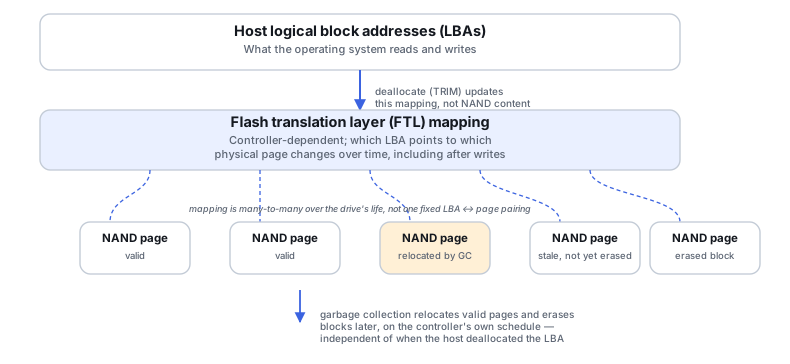
From host LBAs to NAND pages
The operating system addresses an SSD by host logical block addresses (LBAs). The controller's flash translation layer (FTL) maps those LBAs to physical NAND pages, and that mapping is controller-dependent and changes over the drive's life, including after ordinary writes, wear leveling and error-correction-driven relocation — there is no fixed one-to-one pairing between a given LBA and a given physical page to rely on. Some controllers also scramble data before writing it to flash, for wear and error-correction reasons; this is not the same thing as encryption, and reversing it does not require a cryptographic key the way decryption does.
Deallocation, host reads and physical erasure are three different events
Deletion at the filesystem level does not always mean a deallocate (TRIM) command was actually sent for the affected blocks — that depends on the operating system, filesystem and storage stack in between. A namespace exposed over NVMe is a host-visible collection of logical block addresses (see the NVM Express namespace documentation), and once a deallocate command is issued, subsequent host reads of that range may already stop returning the old content — some drives support deterministic read-zero behavior after TRIM, but this is implementation-dependent and not guaranteed across all drives (per NVM Express's own nvme-cli documentation). Physical erasure of the NAND block is a third, later event, carried out by garbage collection on the controller's own schedule. In other words: the host filesystem can appear to have "lost" data through ordinary reads before the underlying flash has actually been erased, and the data can still be physically present after the host can no longer read it back.
Garbage collection has no universal countdown
There is no fixed, universal delay between deallocation and the physical erase that follows it. Garbage collection runs on the controller's own internal logic, and it can continue while the drive has power, independent of whether the host is actively reading or writing. A host-side write blocker stops the host from issuing write commands; it does not stop the controller's own autonomous background activity, and it does not return logical blocks that have already been deallocated.
Keep logical access stable
Reduce further writes to the affected drive as much as possible. If the drive holds an operating system, plan how to preserve what is needed without installing recovery software onto the same drive you are trying to recover from. An image captures what the interface actually returns for a given logical address at the moment it was read — it does not bypass TRIM, does not expose the flash translation layer's internal mapping, and is not a snapshot of the entire NAND. Imaging a drive whose deallocated ranges already read as zero preserves that same zeroed state; it does not restore what came before.
Illustrative example: a visible filename with zero-filled content
A recovery scan finds a deleted file's name and original size, but every byte it reads back for that file is zero.
Filesystem metadata can survive even when the underlying logical blocks already read as deallocated content. A visible name is not evidence the data itself is still there.
Before attributing the zeros to deallocation, check the preserved copy's acquisition map, any extent or reconstruction information, and the raw ranges actually returned for that file — a zero-filled region can also result from acquisition filler or an incorrect address mapping, not only a deallocated logical block. This is a check against the preserved copy, not a reason to re-scan the original drive.
Check a few other recently deleted files from the same volume for the same pattern before drawing a broader conclusion.
Illustrative example: a stable SSD with filesystem corruption
The drive reports correct capacity and reads consistently, but the filesystem will not mount cleanly.
These observations are consistent with a logical problem, but do not establish the cause — stable capacity and reads rule out some access-path problems, not all of them, and they don't by themselves confirm how much of the underlying allocated content is actually intact.
Work from a logical-level recovery approach against a preserved image, the same as any other stable-but-corrupted volume, while remaining open to revisiting that assessment if something doesn't fit.
Confirm file content opens correctly, not just that filenames and directory entries were found.
Illustrative example: wrong reported capacity
The drive reports a capacity far smaller than its labeled size, or an inconsistent capacity between tools.
This points to a controller, firmware or addressing problem, not to ordinary file-level loss, and belongs to a different class of problem than deletion or formatting.
Stop running filesystem scans against it and treat it as an access-path problem first.
Compare against capacity already reported by any other tool or interface you've already used. Reconnecting the drive or running further checks is reasonable under a specific, justified plan — not as a routine series of power cycles or extended tests run just to see what happens.
Wrong capacity, disconnects and controller failure
A wrong reported capacity, repeated disconnects, or a controller that is failing outright are not solved by repeating filesystem scans, running a firmware update, or attempting a secure erase or sanitize command — all of these either do nothing for the actual problem or actively destroy data. Specialized laboratory capability for controller-level recovery is model- and failure-specific; what is possible for one controller family does not transfer to another.
Encryption is a separate layer from controller behavior
Controller-level scrambling (see above) is different from actual encryption, whether that encryption is implemented in the drive's own hardware (a self-encrypting drive) or layered on top by the operating system, such as BitLocker, FileVault, or LUKS. Preserve whatever keys, recovery passwords or metadata are available for whichever layer is actually in use. Removing a NAND chip from its original controller (chip-off) does not, by itself, guarantee access to plaintext data if an encryption layer is also involved — it can still leave the data encrypted, just now without its original controller context.
Validate what you actually recovered
Distinguish files that are still live and intact, files recovered from deallocated or partially overwritten regions, and stale metadata that points to content no longer present. A recovered directory listing is not the same claim as recovered, openable files — check content, not just names.
What should you check first?
Answer a short sequence of questions about the drive's current behavior. Each result points to a safer next step, not a diagnosis of the drive or a predicted outcome.
This guide also works without JavaScript. The same sequence, as a static walkthrough:
Does the drive report its correct capacity and read stably right now?
- Yes → continue to the next question.
- No or not sure → Outcome: Assess the access layer before anything else. A wrong reported capacity, disconnects or unstable reads point to a connection, controller or firmware problem, not ordinary file-level loss. See Wrong capacity, disconnects and controller failure, and When Software Recovery Is No Longer Appropriate and How to Image a Failing Drive Safely.
Based on what you've observed, does this look like ordinary logical loss (deletion, formatting, or filesystem corruption) rather than a controller or connection problem?
- Yes → continue to the next question.
- No or not sure → Outcome: Clarify what you've actually observed before choosing a path. Logical loss and access-path failure need different first moves and can look similar from the outside. See Two different recovery problems, and Logical vs. Physical Data Recovery.
Did the loss involve deletion or formatting, where a deallocate (TRIM) command may already have been sent for the affected area?
- Yes or not sure → Outcome: Understand the limits before predicting any outcome. Deletion or formatting on an SSD may already have triggered deallocation for the affected blocks, after which ordinary tools often cannot recover that content — reading the drive again does not undo this. See Deallocation, host reads and physical erasure are three different events, and Why Deleted Files Usually Can't Be Recovered on an SSD.
- No → continue to the next question.
Is there a specific reason to get specialist help before continuing on your own — for example, the data is uniquely valuable, or you're genuinely not sure the drive's state is as stable as it looks?
- Yes → Outcome: Consider specialist help before further power cycles. When data is unique or critical and the drive's state is still uncertain, further power cycles or trial-and-error attempts add risk for comparatively little information gained. See Wrong capacity, disconnects and controller failure, and Software vs. Hardware Recovery and Hardware Imagers & Recovery Rigs.
- No → Outcome: Preserve the accessible logical data you still have. See Keep logical access stable, and Recovery Copies and Data Recovery Workflow.
- Not sure → Outcome: Work out the data's actual value and the drive's actual condition before deciding between preserving on your own and getting specialist help. See Wrong capacity, disconnects and controller failure, and Recovery Copies.
This guide suggests a next step from the information you provide. It does not diagnose the drive, estimate a percentage chance of recovery, or confirm that what you entered is accurate.
Technical references: NVM Express: namespaces — how an NVMe drive presents logical storage · NVM Express: nvme-cli — reading health and identify data · Linux kernel ABI: queue/discard_zeroes_data — no guaranteed read result after discard · Wei et al., FAST '11, §2.2 and §4.1 — FTL remapping leaves old physical copies. Deallocate, read-after-deallocate and garbage-collection behavior are implementation-specific; these sources describe mechanisms, not any one drive.
Related: Flash Translation Layers and NAND Mapping · Encryption Key Hierarchies & Recovery Metadata · SSD Controller Failure · Why Deleted Files Usually Can't Be Recovered on an SSD · Logical vs. Physical Data Recovery · Data Recovery Workflow · Recovery Copies · USB/SATA & NVMe Adapters · Hardware Imagers & Recovery Rigs.