Drive Asks to Be Initialized
Windows may show a disk as Unknown, Not Initialized and offer to initialize it as MBR or GPT. If the disk previously contained needed data, initialization is not the first recovery step.
Drive asks to be initialized: what should you do next?
Answer one question about the current state. The result suggests the safer next step rather than diagnosing the failure.
Did this disk previously contain data, partitions, a file system, or another layer you recognize?
Do not click Initialize.
Preserve the current state and look for the existing filesystem before creating a new layout — initialization writes new disk-layout metadata that can complicate reconstruction.
This is likely a normal setup step.
For a disk you know is new and empty, initializing it is routine. If there is any doubt about its history, treat it as recoverable first instead.
This guide classifies the next recovery action from observable information. It does not diagnose hardware condition or estimate a percentage chance of recovery.
What “Not Initialized” actually means
“Not Initialized” is a Windows disk-management state, not a diagnosis and not proof that the disk is blank. It means Windows does not currently have a usable disk layout for that device in the form it expects. The cause can be as simple as a new unused disk, but on a previously working source it can also reflect damaged or unreadable partition metadata, incorrect device capacity, sector-read problems, a changed USB bridge or sector translation, storage virtualization, encryption, or a failing device.
The important question is therefore not “MBR or GPT?” but why Windows no longer recognizes the layout that should already be there.
Not Initialized is not the same as RAW, Unallocated, Offline or Not Detected
These labels describe different layers. A RAW volume is normally a volume Windows can see but cannot mount as a recognized file system. Unallocated space is address space not currently assigned to a recognized partition. An Offline disk is known to Windows but deliberately not brought online. A Not Detected device may be absent from the storage stack entirely. Not Initialized means the physical or virtual disk object is visible, but Windows does not have a usable initialized disk layout for it.
Those states can occur together or change as the underlying problem changes, so the label alone should not be used to choose a repair action.
Why a previously working disk may suddenly appear Not Initialized
On an MBR disk, damage near the beginning of the device can make the partition table unavailable. GPT uses metadata at both the beginning and the end of the disk, so recovery may sometimes be possible from surviving structures even when one copy is damaged. But the same Windows symptom can also occur when those sectors are simply unreadable, when the device reports the wrong capacity, or when the operating system is no longer seeing the same logical sector layout that was used when the data was written.
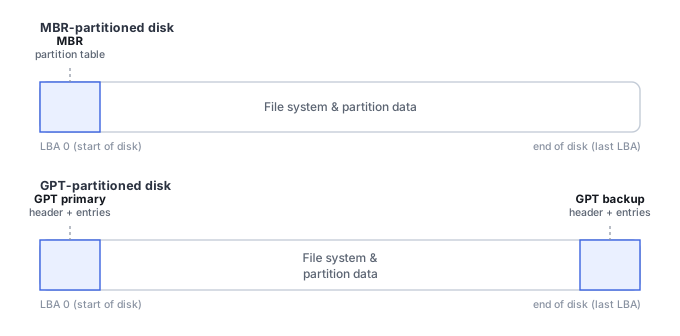
External drives deserve special caution. A USB-SATA bridge can affect sector presentation and, in some designs, encryption. Moving the bare disk to another enclosure may therefore change how existing sectors are interpreted. RAID members, SAN LUNs, virtual disks and other layered storage can likewise look meaningless when examined outside the layer that originally assembled or mapped them.
What happens if you click Initialize
Initialization is a write operation, and it is only the first of several distinct mechanisms that can affect a disk which already held data: initialization writes new disk-layout metadata; creating a partition adds partition entries on top of that layout; formatting then creates new file-system structures inside that partition; and any subsequent use of the resulting volume writes further, unrelated data. Clicking Initialize by itself does not automatically perform the other three, and it does not by itself overwrite every sector containing user files. However, on a disk that already held data, its writes can replace metadata that describes the previous layout, and each of the following steps narrows the recovery window further.
Choosing between MBR and GPT does not “tell Windows what the old disk was.” It asks Windows to create a new initialized layout. If the goal is recovery, discovering the previous layout should come before creating a new one.
Do not click Initialize merely because Disk Management offers it. Also avoid creating a new simple volume, formatting the disk, saving recovered files or installing software onto it, running partition-repair tools in write mode, or repeatedly rescanning an unstable device. Preserve the existing state first, and work from a verified image or another preserved copy when practical.
What you can check safely
Record the exact status shown by Disk Management and check whether the disk reports the expected model and full physical capacity. Note whether it remains connected consistently and whether accessing it produces I/O errors, long stalls or disconnects. If the disk is external, preserve the original enclosure, bridge board, power supply and cable even if a known-good connection is used for a limited comparison.
If the disk reports 0 B, No Media, a wildly wrong capacity, repeated disconnects or serious read errors, treat that as a hardware/acquisition problem rather than a layout problem — Microsoft's own Disk Management troubleshooting guidance lists device problems, not only missing partition metadata, among the causes of a disk appearing Not Initialized. If the reported capacity is obviously wrong, solve that layer first — see Drive Shows the Wrong Capacity — before attempting partition reconstruction. If the device is unstable or sectors cannot be read reliably, start with Drive Not Detected. Controlled imaging should take priority when the device is still safely readable; when normal acquisition is unsafe, unstable or impossible, professional acquisition may be warranted. If the device is stable, reports the correct capacity and can be read safely, the next step is normally non-destructive examination of existing partition and file-system structures — see Partition Table Recovery and Filesystem Discovery.
What changes recoverability
Recoverability depends on what is actually missing and whether the underlying sectors are still readable. A damaged partition table with intact file-system structures is very different from a disk whose first sectors cannot be read, a drive reporting the wrong capacity, or a source that has already been initialized, repartitioned and formatted. Subsequent writes matter because they can replace both layout metadata and user data.
If initialization was already performed, do not assume the data is gone. Stop further writes and evaluate what changed. In many cases the bulk of the old data area may still exist, but the recovery path now depends on which old metadata was overwritten and whether the previous file system can still be reconstructed.
The safer recovery path
For a stable readable disk, preserve an image when practical and analyze the copy for the previous partitioning and file-system structures. Partition reconstruction can be useful, but writing a reconstructed partition table back to the only source is a repair operation, not a prerequisite for recovering files. Files can often be recovered from an image or directly recognized file-system structures without first making Windows accept the original disk again.
Discover the existing filesystem before creating a new layout
Because a partition table is only a map to where filesystems begin and end, the more reliable order of operations is: verify the device's physical capacity and read stability, then scan the disk directly for filesystem boot sectors, superblocks or container signatures at plausible offsets, validate a candidate structurally, and only then decide whether writing a reconstructed partition table is actually needed. Clicking Initialize skips every one of those steps and creates a new, empty layout on top of whatever old one might still be discoverable underneath. See Partition Table Recovery and Filesystem Discovery for the full discovery process.
The branch above still applies here: software cannot reliably reconstruct metadata that the storage device cannot consistently return, so an unstable or wrong-capacity disk needs acquisition solved first, not a more careful scan.
Common mistakes
The most common mistake is treating the Windows prompt as an instruction required to “unlock” or “detect” the old disk, rather than as an offer to create a new layout on top of whatever might still be there. Once that framing takes hold, the writes described above tend to happen one after another rather than being caught before the first one.
Related reading: Partition Loss · RAW Drive · Drive Not Detected or Keeps Disappearing · Drive Shows the Wrong Capacity · Bad Sectors and a Failing Drive · Partition Recovery vs File Recovery · Understanding Storage Layers Before Recovery · Hex Editors & Disk Structure Viewers · Partition Table Recovery and Filesystem Discovery.
This page describes the general situation, not a guaranteed fix for a specific case. If the source is unstable or the data is irreplaceable, consider a professional evaluation before further attempts.