Drive Not Detected or Keeps Disappearing
When a drive is absent from the OS or repeatedly disconnects, first determine which layer can still see it before treating the problem as file-system damage.
Drive not detected: what should you do next?
Answer one question about the current state. The result suggests the safer next step rather than diagnosing the failure.
Is the device visible anywhere — BIOS/UEFI, Disk Management, Disk Utility, or the hardware tree — even if not in File Explorer or Finder?
Visible is not the same as healthy — check stability next.
Device-level visibility means the host can enumerate the object; it does not by itself confirm correct identity, plausible capacity or stable reads. If the device reports the expected identity and capacity and remains readable without stalls or errors, logical, partition, filesystem, encryption or mounting causes can be investigated first. If it is visible but reports the wrong capacity, changes identity, or the connection keeps dropping, treat it as wrong capacity or an unstable source (see Bad Sectors and a Failing (but Working) Drive) instead of an ordinary mounting issue.
Treat this as a hardware or interface problem.
A device absent from firmware or the storage controller entirely is a stronger sign of a power, interface, controller, firmware or media failure — not something ordinary recovery software can address.
This guide classifies the next recovery action from observable information. It does not diagnose hardware condition or estimate a percentage chance of recovery.
Detection is a ladder, not one state
A drive can sit at several different points along a detection ladder: fully mounted with a visible volume; visible in Disk Management/Disk Utility but with no mountable volume; visible with addressable sectors but an unclear device identity or capacity; visible only at the interface/controller level rather than confirmed further; or absent even from the storage controller entirely. Wrong or zero capacity, appearing and disappearing, and read stalls or errors are not extra rungs on this ladder — they are abnormal signs that can accompany more than one of these points, not a lower detection level by themselves. Where a drive actually sits on the ladder, and which abnormal signs accompany it, changes what “not detected” really means and which layer needs attention next.
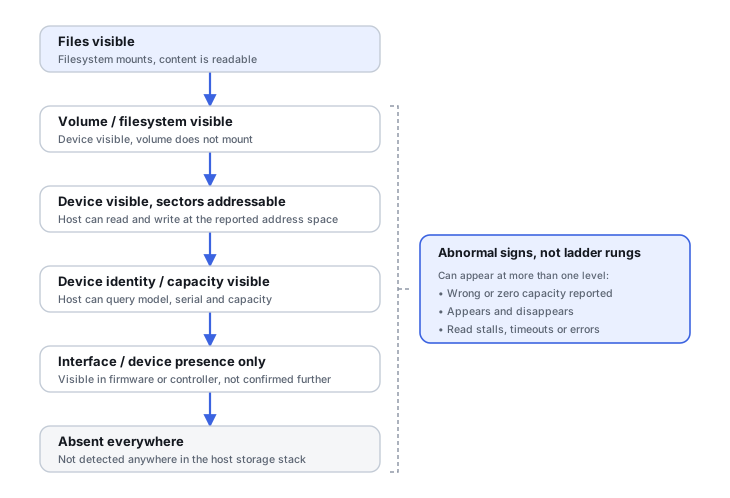
| Observation | What it narrows the problem toward |
|---|---|
| Filesystem mounts and files are visible | Not a detection problem |
| Device appears in Disk Management/Disk Utility, but the volume does not mount | Partition, filesystem, encryption or mounting layer |
| Device is present and reports the correct capacity, but sectors or files are inaccessible | Logical damage, or unstable media — check stability next |
| Device reports the wrong or zero capacity | Firmware, controller, translation or bridge path |
| Device appears and disappears | Power, interface, bridge, controller or media instability |
| Device visible in firmware/controller but not normally in the OS | Driver, interface, OS or storage-stack issue possible |
| Device absent everywhere | Power, electronics, firmware, mechanical or controller path |
Each row narrows the problem toward a layer; it is not a diagnosis by itself.
Detected does not mean healthy. Device-level visibility means the host can enumerate the storage object — it does not establish that the device is healthy. Correct identity, plausible capacity, a stable connection and sustained readable sectors are separate observations, and a device can fail any one of them while still showing up in Disk Management or Disk Utility.
Is the source stable enough to diagnose, or does it need preserving first?
Treat the source as unstable if it:
- repeatedly disconnects or resets;
- changes its reported identity or capacity;
- produces read stalls, timeouts or errors;
- clicks, grinds, or repeatedly spins up and down;
- becomes progressively slower under reading;
- requires repeated power cycles to stay accessible.
A stable, consistently readable device can usually be diagnosed and preserved with an ordinary image before further logical work. An unstable device changes the priority from diagnosis to preserving readable data with minimum additional stress — repeated enumeration and random reads from several recovery programs can consume the remaining access window.
Causes, grouped by layer
The same visible symptom can originate at very different layers, and the layer changes both the risk and the recovery path:
- OS, mount or filesystem layer — a recognized device with a missing drive letter, mount point or damaged filesystem metadata.
- Interface, power or bridge — a cable, port, power path or USB/SATA/NVMe bridge that cannot sustain a connection.
- Firmware, translator or controller — internal HDD service-area/translator faults or SSD/flash controller and translation-layer failures.
- Mechanical or electrical source failure — head, media, motor or electronic faults on an HDD, or physical damage to any device.
What to observe before doing anything
Record where the device is visible, its model and reported capacity, and whether reads cause freezes, timeouts or reconnects — without writing to the source:
- where the device is visible (BIOS/UEFI, Disk Management/Disk Utility, hardware tree, file manager);
- exact reported model and capacity;
- whether access is stable across repeated attempts;
- read errors, stalls or timeouts.
A single known-good cable, port or power-path swap is a reasonable test that changes only the connection, not the source. For an internal drive, a screenshot of Disk Management/Disk Utility or the controller inventory is more useful than repeatedly rescanning it. Do not initialize, format, create a new volume, run CHKDSK/fsck, or subject an unstable device to full scans by several recovery programs merely to make it appear or to see if a scan finds something — each of these can stress or write to a source you may still need to preserve.
Common mistakes
Repeatedly power-cycling a clicking HDD, running CHKDSK/fsck, initializing an “unknown” disk, updating firmware as an experiment, or opening an HDD outside appropriate lab conditions can all turn a detection problem into a harder recovery. For external drives, removing the disk from an enclosure can also be non-trivial: some USB bridges perform encryption or sector translation, so preserve the original bridge and electronics even if you test another connection path.
Sound and behavior are stop signals, not diagnoses
An HDD can spin up correctly and still fail to reach a ready state — spinning is not the same as a successful initialization. Clicking, or the same busy/not-ready symptom, can come from a missing or damaged service-area module rather than a genuinely failed head, or from actual mechanical failure; the sound alone does not distinguish them. Spinning, clicking or not-ready behavior is a stop signal, not a precise diagnosis — see firmware, service area and translator recovery and Mechanical Hard Drive Failure for how each is actually distinguished and handled.
Where to go next
Once the ladder position and stability are established, the appropriate branch is usually one of:
- External USB Drive Not Working — when a USB enclosure, bridge or power path is part of the symptom.
- Drive Shows the Wrong Capacity — when the device is present but the reported size is implausible.
- Drive Shows as RAW / Partition Loss / File System Corruption — device-level access is healthy but logical structures are not.
- Mechanical HDD Failure — mechanical signs or severe instability on an HDD.
- SSD Controller Failure / USB Flash Drive Failure — SSD or native-flash device and controller symptoms.
- Bad Sectors and a Failing (but Working) Drive — readable but degrading or unstable media.
Do not save recovered files, install software, create partitions, format, initialize or run write-capable repair tools on the only copy of the affected data. When practical, work from a verified image or another preserved copy.
Related reading: Safe Imaging Failing Drive · SMART & Drive Diagnostic Tools · USB/SATA & NVMe Adapters · When Software Is Not Enough · HDD PCB, ROM and Adaptive Data Recovery · HDD Heads, Platters and Mechanical Failure · Professional HDD Recovery Hardware.
This page describes the general situation, not a guaranteed fix for a specific case. If the source is unstable or the data is irreplaceable, consider a professional evaluation before further attempts.