Drive Shows as "RAW"
When Windows reports a volume as "RAW," it means Windows cannot mount a recognized file system there. The cause may be limited metadata damage, a lost partition boundary, encryption, unsupported structures, or a failing device — so "RAW" is a symptom, not a diagnosis. It is a different layer from a drive that is not detected at all, one that reports the wrong capacity, or one that shows as unallocated or asks to be initialized.
Drive shows as RAW: what should you do next?
Answer one question about the current state. The result suggests the safer next step rather than diagnosing the failure.
Does the device remain connected, show the correct capacity and read without severe errors or stalls?
Treat RAW as a logical symptom first.
Preserve the volume, then inspect partitions, encryption state and file-system metadata. Do not format simply because Windows reports RAW.
Treat this as an acquisition problem first.
RAW can coexist with failing hardware. If access is unstable, image readable sectors or seek hardware diagnosis before file-system reconstruction.
This guide classifies the next recovery action from observable information. It does not diagnose hardware condition or estimate a percentage chance of recovery.
What's actually happening
Windows reports a volume as RAW when it cannot mount it as a supported file system. That decision depends on more than a single signature: partition boundaries, file-system boot records or superblocks, version fields, internal metadata and sometimes encryption or storage layers all matter. Damage to an entry-point structure can be enough to trigger RAW, but the same symptom can also appear when the volume starts at the wrong offset, the expected layer is encrypted, critical metadata is inconsistent, or reads from the device are failing. RAW therefore means “not mountable as a recognized file system in the current state,” not “the file system has been erased.”
Windows also uses the word RAW in more than one context, and the two should not be mixed. This article is about a volume Windows can see but cannot mount as a recognized file system — the meaning used throughout. Storage-management interfaces can separately describe an uninitialized disk's partition style or state as RAW; that is a disk-layout symptom, not a file-system one. Where the disk itself has no usable partition-layout metadata rather than an unmountable volume, see Drive Asks to Be Initialized.
How recoverable this really is
Recoverability depends on which layer is wrong and how much intact metadata remains underneath. A damaged primary boot record with a valid backup and otherwise coherent file system can be a relatively narrow problem. A wrong partition offset can make an intact file system appear unreadable. Deeper metadata damage may still allow file-system reconstruction, while unstable reads or overwritten structures can make the case substantially harder. Raw carving is a fallback when useful metadata cannot be reconstructed; it should not be assumed to be the next step merely because Windows says RAW.
What RAW can actually mean
Damaged file-system entry structures. A boot sector, superblock or related metadata may be unreadable or internally invalid while deeper structures still survive.
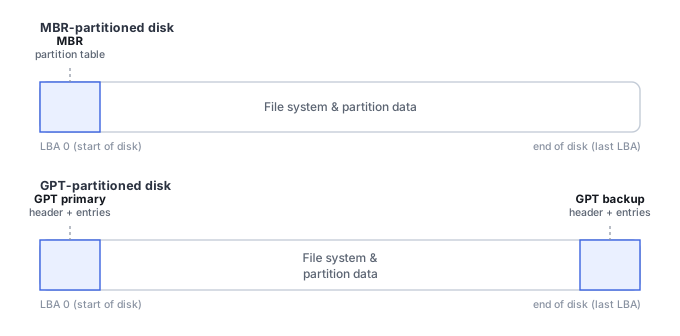
Wrong or lost partition boundaries. If the operating system starts reading at the wrong offset, a healthy file system can appear to be missing. This overlaps with Partition Loss, but the partition table should not be rewritten until the expected volume is verified.
Encryption or an unsupported layer. An encrypted container, unsupported file system, storage pool or virtualization layer can present data that Windows does not recognize as a mountable volume.
Unstable media. Read errors, timeouts and disconnects can make critical metadata unavailable intermittently. In that case RAW is secondary to the acquisition problem.
What you can check safely
Check whether the physical device is detected consistently, whether its reported capacity is plausible, whether the expected partition still exists, and whether reads complete without long stalls or I/O errors. Also establish whether encryption, a NAS/RAID layer, a virtual disk or another storage abstraction is expected. These observations help identify the missing layer without formatting or repairing the source.
The general approach
Recovery tools can search for surviving file-system structures, infer candidate volume boundaries and compare primary metadata with backups or redundant copies where the file system provides them. NTFS, for example, stores a backup volume boot record near the end of the volume. Finding a consistent backup can help explain the failure and may support a later repair, but the safer recovery workflow is to verify the reconstructed volume and copy important files before writing replacement metadata back to the source.
Prefer filesystem reconstruction over carving
A RAW volume is exactly the situation where it's tempting to reach straight for a signature-carving scan, but that skips several higher-value steps: establish the correct partition offset, identify the filesystem, parse whatever redundant or secondary metadata it provides — for NTFS, that includes the MFT and its attributes, not just the boot sector — and reconstruct a metadata-based view of files with names, folders and timestamps intact. Carving is the right fallback only for whatever that reconstruction genuinely cannot recover. See NTFS MFT, Allocation and File Reconstruction and File-System Recovery vs. File Carving for why this ordering matters.
Don't click "Format disk" when Windows prompts it. That prompt is, quite literally, offering to do the thing described in the accidental formatting scenario on top of an already-confused file system — and it's the single most common way a fully recoverable RAW drive turns into a harder one.
Because RAW can be a symptom of more than one problem, compare File System Corruption, Partition Loss, and Bad Sectors before treating it as a repairable partition-table issue. Tools such as TestDisk can help inspect partition and boot-sector structures, while file-system-aware recovery software can often open a damaged volume without repairing it in place. Prefer verifying and copying data first; writing reconstructed partition or boot metadata back to the source is a separate repair step. See the full directory of recovery software by vendor · Drive Asks to Be Initialized · Partition Table Recovery and Filesystem Discovery · NTFS MFT, Allocation and File Reconstruction.
This page describes the general situation, not a guaranteed fix for your specific case. If you'd rather have someone experienced take a look before you try anything, see what a hands-on evaluation looks like.