External USB Drive Not Working
An external drive adds cable, power, USB bridge and enclosure electronics between the computer and the storage device, so isolate the failing layer before assuming the disk itself is dead.
External USB drive not working: what should you do next?
Answer one question about the current state. The result suggests the safer next step rather than diagnosing the failure.
Does the device respond consistently — enumerate, report the correct capacity, and read without stalls or disconnects — through the original enclosure using a known-good compatible cable, port and power path?
Preserve data through the working connection.
Image the drive using the original enclosure and a known-good cable, port and power path, then investigate any earlier cable/port suspicion separately rather than continuing to swap connections on a link that already works.
Isolate the bridge from the underlying drive before trying another enclosure.
If the original enclosure stays unstable even with a known-good cable, port and power path, the underlying drive or the bridge itself may be failing. Moving the media to a different enclosure, or connecting a bypassed disk directly, can change how sectors are represented — establish whether the bridge affects data representation first, rather than treating a different enclosure as a neutral connectivity test.
This guide classifies the next recovery action from observable information. It does not diagnose hardware condition or estimate a percentage chance of recovery.
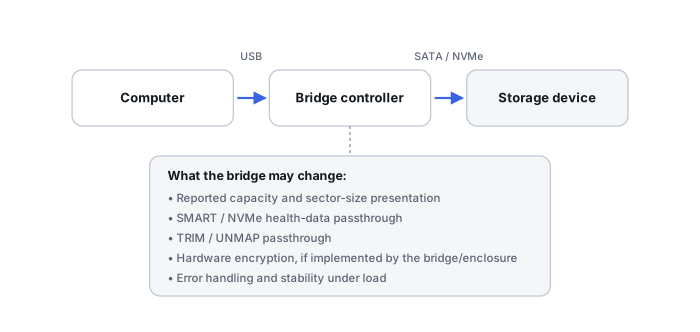
Why external drives are different
An external HDD or SSD is a storage device plus an interface stack. The computer may be communicating with a USB-to-SATA bridge rather than directly with the drive. Failures in the cable, connector, power adapter, bridge board or enclosure can mimic a dead disk, while a genuinely failing disk can make an otherwise healthy USB bridge reset repeatedly. The device can also be visible at the USB layer while the disk underneath it never becomes usable — see Drive Not Detected or Keeps Disappearing for the general detection ladder this article does not repeat in full.
Safe observations
Check whether the enclosure powers up, whether the USB device appears in the system hardware list, whether the actual disk model/capacity is exposed, and whether disconnects occur only during reads. A single test with a known-good cable, port and—where applicable—correct power supply is reasonable, and tests only the connection. Swapping the enclosure itself is a different test, not a bigger version of the same one: the bridge inside can also affect how the drive's sectors are represented, so treat an enclosure swap as a bridge/data-representation question (see below), not a neutral connectivity check. If the drive clicks, spins up and down, becomes extremely slow, or disconnects under load, stop treating the problem as a simple USB accessory fault.
Before removing the drive
Do not assume every enclosure contains a normal SATA disk that can simply be connected directly. Some portable drives integrate USB on the drive PCB; some bridges apply transparent encryption or sector-size translation; some multi-disk enclosures contain RAID/JBOD metadata. Keep the original enclosure, bridge board and power supply. They may be part of the data path needed to interpret the sectors correctly.
Recovery path
If the underlying device is stable and direct access preserves the same logical sector view, create an image and recover from the image. If only the bridge failed, replacing the interface path may restore access—but verify the resulting sector layout before writing anything. If the underlying HDD/SSD is unstable or not identified correctly, move to the appropriate hardware-failure path instead of scanning through repeated USB resets.
Common mistakes
Formatting after Windows says the external disk must be formatted, initializing it in Disk Management, repeatedly reconnecting an unstable HDD, discarding the original bridge, or swapping random power adapters can complicate recovery. The useful question is not “does USB work?” but “which layer is the last one that still exposes the original sectors consistently?”
USB can be part of the data format, not just the cable
Some enclosures apply transparent encryption or sector-size translation inside the USB bridge itself — connecting the raw internal disk directly to a computer, once removed from that bridge, can present a different logical view of the same data rather than the same sectors the host was reading through USB. Preserving the bridge isn't just about power and connectivity; it can be part of the actual recovery format.
Native USB is not always convertible by swapping a cable
Some drives integrate USB electronics directly on the internal disk's own PCB rather than exposing SATA behind a separate bridge board. That kind of drive has no ordinary SATA connection to fall back on at all, which makes “just take it out of the enclosure and connect it directly” an assumption that doesn't hold for every external drive.
USB resets can be a symptom of the disk, not the bridge
Repeated USB disconnects and resets are often blamed entirely on the enclosure, but they can just as easily be a secondary symptom of an unstable internal HDD stalling or erroring on reads. Isolating which layer is actually failing — see HDD PCB, ROM and adaptive data recovery — matters more than assuming the USB layer is always the guilty one.
Preserve the bridge and the original PCB together
Because the bridge, the drive's own PCB, and the internal media can all matter to how the final sectors are interpreted, a lab handling this kind of case keeps the original enclosure electronics associated with the drive rather than discarding them once a workaround connection is found.
Do not save recovered files, install software, create partitions, format, initialize or run write-capable repair tools on the only copy of the affected data. When practical, work from a verified image or another preserved copy.
Related reading: Drive Not Detected · Raw Drive · Mechanical Hdd Failure · Imaging Vs Cloning · USB/SATA & NVMe Adapters · SMART & Drive Diagnostic Tools · Disk Imaging & Cloning Tools · HDD PCB, ROM and Adaptive Data Recovery · Imaging Bad Sectors and Unstable HDDs.
This page describes the general situation, not a guaranteed fix for a specific case. If the source is unstable or the data is irreplaceable, consider a professional evaluation before further attempts.