Accidental Deletion
Deleting a file usually removes its active filesystem reference before the old payload is actually replaced — it isn't the same event as erasing the content. Whether those old contents stay recoverable depends on later writes, storage type and deallocation behavior, which is why acting quickly and leaving the drive alone matters more than which tool you use.
Deleted files: what should you do next?
Answer one question about the current state. The result suggests the safer next step rather than diagnosing the failure.
Is the source an SSD or flash-based device where TRIM/deallocation may apply?
Deallocation may change the recovery path.
Stop all writes. Do not install recovery software onto the affected device. Assess whether TRIM/deallocation could have reached the storage before relying on ordinary undelete.
Preserve the source, then recover files.
If the device is healthy and no overwrite has occurred, file-system metadata may still describe deleted files. Recover to separate storage and validate important results.
This guide classifies the next recovery action from observable information. It does not diagnose hardware condition or estimate a percentage chance of recovery.
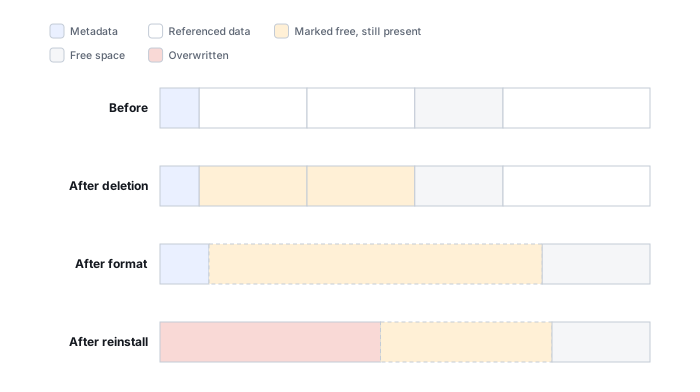
What's actually happening
When a file is deleted — even "permanently," bypassing the Recycle Bin or Trash — the file system normally marks its space as available and updates or removes metadata that referenced the file. The exact metadata changes differ between NTFS, APFS, ext4 and other file systems. What happens to the actual content next depends heavily on storage type: on a conventional HDD, the old content typically just sits in those sectors until something else reuses them; on an SSD or other flash storage, a deallocation command can make old logical blocks stop returning their previous content much sooner, independent of whether anything new has been written yet. Whether the original name, path and allocation information survive is a separate question again.
| Event | What may be lost first |
|---|---|
| Delete | Namespace / allocation references |
| Later write | Old payload extents |
| SSD deallocation | Old logical contents may stop being returned |
These three events can happen independently and in different orders — deletion alone only guarantees the first one.
How recoverable this really is
Several factors matter more than the brand of recovery software. The most important are what kind of storage holds the deleted file, how much writing happened afterward, how much file-system metadata survived, and whether the file was stored contiguously or in multiple extents.
SSDs and other flash-based storage need a separate warning. If the operating system issues TRIM or another deallocation command and that command reaches the storage, old logical blocks may stop returning their previous contents even before the underlying flash cells are physically erased. The exact result depends on the file system, operating system, controller and any USB, RAID or virtualization layer between them. See SSD deletion and TRIM for the storage-stack details.
What changes recoverability
Storage type. On a conventional HDD, deleted content may remain readable until later writes reuse the same sectors. On SSDs, NVMe devices and some other flash storage, deallocation can remove access to old logical content much sooner.
Post-deletion writes. Installing software, downloading files, browser caches, updates, paging, logs and even ordinary background activity can reuse free space. A computer that remained powered on and active after deletion is a different case from a secondary drive that was disconnected immediately.
Metadata survival. A deleted file may still have enough directory, inode, MFT or extent information to recover its original name, path and fragments. If that metadata has been reused, recovery may fall back to content recognition instead.
Fragmentation and file type. Large databases, virtual disks, archives and video files are more difficult to reconstruct from raw content when they were fragmented. Small contiguous photos or documents are often easier to identify without metadata.
Cloud sync, snapshots and encrypted volumes change the picture
If the deleted file lived in a synced folder, the deletion can propagate to linked devices and cloud storage before you notice — check the service's own trash or version history first, since it can be a faster and cleaner recovery path than local undelete; see recovering deleted or prior versions of cloud files and recovering from snapshots and previous versions. On an encrypted volume, deleting or rotating the encryption key is a separate event from deleting the file itself, and it can remove access to data whose sectors are still physically intact — see encryption key hierarchies and recovery metadata.
What you can check safely
Before scanning, record what was deleted, from which volume, approximately when, and what happened afterward. Note whether the source is an HDD, SSD, memory card or USB flash device; whether the operating system continued to run from that same device; and whether any cleanup, repair, update or new file copy occurred. These observations help choose the recovery path without writing anything to the source.
The general approach
Recovery software first examines surviving file-system metadata for records that still describe the deleted object, its name, directory relationship and data extents. When even those are gone, tools fall back to scanning the raw disk for the recognizable byte patterns that mark the start of common file types (a technique usually called "carving"). The first method is faster and keeps original names and folder structure; carving works even on a badly damaged file system, but it typically can't recover names, and it struggles with files that were fragmented across the disk.
Don't keep using the drive the files were on — installing a recovery tool onto it, saving recovered files back onto it, or just continuing normal work. Any of those can silently overwrite the exact data being recovered. If the files matter, stop writing to that drive immediately, and do everything else — installing software, saving output — on a different drive.
For a plain deletion like this, a free tool such as Recuva or Disk Drill is usually enough to check whether the files are still recoverable — see the full directory of recovery software by vendor for more options, or free vs. paid recovery software for how to decide between them. If new writes reached the affected extents before you could stop them, that's a different case — see Data Overwritten After Deletion or Formatting — and once something is recovered, a correct-looking name is not the same as validated content; see Validating Recovered Data. For how metadata-based and raw carving actually differ under the hood, see File-System Recovery vs. Carving. A real backup, covered in Backup Drive Picks, makes this whole scenario a non-event instead of a scramble · Files Missing but Storage Space Is Still Used.
This page describes the general situation, not a guaranteed fix for your specific case. If you'd rather have someone experienced take a look before you try anything, find a recovery provider by region.