Computer Won’t Boot but the Drive May Still Be Healthy
A failed Windows, macOS or Linux boot is not automatically a storage failure; preserve the data before using reinstall, reset or repair options that can write to the disk.
Computer won't boot: what should you do next?
Answer one question about the current state. The result suggests the safer next step rather than diagnosing the failure.
Is the storage device itself identified consistently, at the correct capacity, and readable without severe errors, stalls or disconnects?
Preserve the data before touching the boot process.
Image or otherwise preserve the storage before using Reset, reinstall or repair options that can write to the disk. A damaged bootloader does not require file carving if the file system itself remains intact.
Treat this as a storage problem, not a boot problem.
SMART warnings, I/O errors, timeouts or repeated disconnects mean further boot attempts can cause damage. Move to controlled acquisition or professional diagnosis.
This guide classifies the next recovery action from observable information. It does not diagnose hardware condition or estimate a percentage chance of recovery.
Boot failure is a symptom above several layers
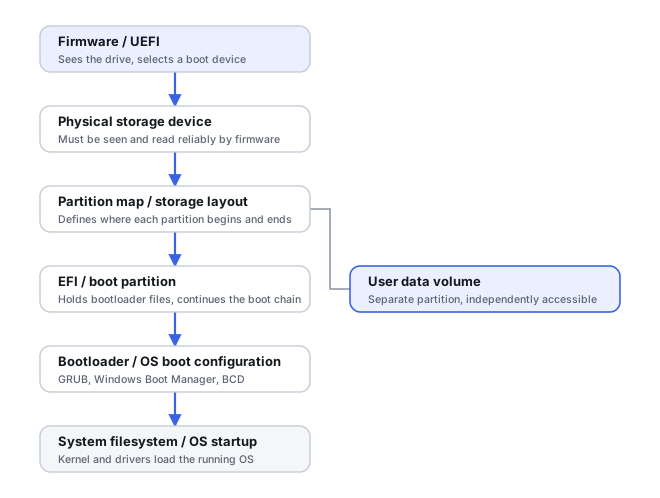
A computer can fail before the operating system loads because of firmware settings, bootloader damage, an interrupted update, file-system corruption, encryption state, missing system files or actual storage hardware failure. The key recovery question is whether the storage device itself is identified correctly and can be read stably—not whether the OS reaches the desktop. Bootability is not the same as data accessibility. The underlying data volume can stay intact through any of those boot-path failures; conversely, a healthy data volume does not guarantee that the installed OS can boot.
| Observation | What it tells you | What it does not prove |
|---|---|---|
| Drive absent from firmware/UEFI | A lower-level storage or interface issue is possible | The exact hardware failure |
| "No boot device" | A boot path or drive-visibility problem | That data was lost |
| Automatic Repair loop | An OS/boot/filesystem issue is possible | Drive health |
| BitLocker/FileVault recovery prompt | Encryption protector/key state matters | That data was erased |
| GRUB/bootloader error | A boot metadata/configuration problem is possible | Filesystem content loss |
| Files still readable from another environment | The user-data layer may be healthy | That the installed OS is repairable |
Each observation narrows toward a layer; none of them by itself proves data loss or hardware failure.
Separate system recovery from data recovery
If the files matter more than restoring the installation, do not begin with Reset this PC, reinstall macOS/Windows, partition repair or automated “fix boot” tools. Those procedures are intended to restore bootability and may write extensively to the same storage that contains the only copy of the data. Data recovery can often be done without making the original OS boot again.
What to observe safely
Check whether firmware sees the drive with the correct model/capacity and whether a trusted read-only or external environment can enumerate it without severe errors. Note BitLocker, FileVault, LUKS or other encryption credentials before changing hardware or firmware settings. If the drive disappears, reports the wrong size, clicks, or stalls under reads, treat it as a storage-access problem rather than an OS problem.
Recovery path for a stable drive
For a stable device, image or otherwise preserve it, then mount or recover the data from the copy. A damaged bootloader does not require file carving if the file system itself remains intact. If the file system is corrupted, use file-system-aware recovery. Only after the data is secure should repair, reinstall or reset be considered.
The boot partition and the data filesystem are separate objects
Modern UEFI systems keep boot files in a dedicated EFI System Partition, separate from the main NTFS, APFS or ext4 volume holding user data. Damage to that EFI partition, or to a Linux boot partition, can prevent boot entirely while leaving the data volume completely intact and readable — “the OS won’t boot” does not by itself say anything about whether the data filesystem is damaged. On modern macOS, APFS adds a further layer: a boot volume group can span several roles — System, Data, Preboot, Recovery, VM — rather than one monolithic root volume. Loss or corruption of Preboot/System metadata can affect bootability specifically while the Data volume, where user files actually live, remains untouched. See APFS Containers, Object Maps and Snapshots for how APFS volumes and roles fit together, and Partition Table Recovery and Filesystem Discovery for locating a data volume independent of a broken boot chain.
When the drive is not healthy
If boot failure coincides with SMART warnings, I/O errors, timeouts or repeated disconnects, repeated boot attempts can generate heavy random reads and writes. Move to controlled acquisition or professional diagnosis. The fact that the machine “almost boots” is not proof that continued boot attempts are safe.
Do not save recovered files, install software, create partitions, format, initialize or run write-capable repair tools on the only copy of the affected data. When practical, work from a verified image or another preserved copy.
Related reading: Drive Not Detected · Filesystem Corruption · Os Reinstall Overwrite · Data Recovery Workflow · Understanding Storage Layers Before Recovery · Recovery Copies · Encryption Key Hierarchies and Recovery Metadata · BitLocker Key Protectors and Recovery · Partition Table Recovery and Filesystem Discovery · APFS Container or Volume Corruption (macOS).
This page describes the general situation, not a guaranteed fix for a specific case. If the source is unstable or the data is irreplaceable, consider a professional evaluation before further attempts.